Why Regex Is the Fastest Skill You Can Add This Week
Regex has been stable since the 1960s. It works in Google Sheets, Excel, Notepad++, VS Code, Python, JavaScript, and every major programming language.
Learn ten patterns once, use them forever.
Marketing operations, SEO, virtual assistant work, and any spreadsheet-heavy job get a permanent speed boost from regex. And 74% of Gen Z professionals use Google Sheets daily, which means the modern workforce sits on top of a spreadsheet layer where regex compounds in value with every year.
Chapter 1: The Three Functions You Need in Google Sheets
Google Sheets has three regex functions. Together they cover almost every extraction and cleaning job.
| Function | What it does | Example |
|---|---|---|
| REGEXMATCH | Returns TRUE or FALSE | Check if a cell contains an email |
| REGEXEXTRACT | Pulls the matching text out | Get just the domain from a URL |
| REGEXREPLACE | Swaps matches for something else | Strip all phone number formatting |
In Excel, similar functions arrived in Microsoft 365 in 2024. Same syntax, same behavior.
Chapter 2: Pattern 1 — Extract Any Email Address
The pattern:
[\w.+-]+@[\w-]+\.[\w.-]+
The formula:
=REGEXEXTRACT(A2, "[\w.+-]+@[\w-]+\.[\w.-]+")
Point it at a cell that mixes text and an email. It returns just the email. Combine with QUERY to build an email extractor across a whole column of messy notes.
Chapter 3: Pattern 2 — Extract a Phone Number
\+?\d{1,3}?[-.\s]?\(?\d{3}\)?[-.\s]?\d{3}[-.\s]?\d{4}
That handles U.S. and international formats. In Sheets:
=REGEXEXTRACT(A2, "\+?\d{1,3}?[-.\s]?\(?\d{3}\)?[-.\s]?\d{3}[-.\s]?\d{4}")
To strip all formatting and keep just digits:
=REGEXREPLACE(A2, "\D", "")
The \D matches anything that is not a digit. Replacing with an empty string leaves only the digits.
Chapter 4: Pattern 3 — Extract Any URL
https?:\/\/[^\s]+
Formula:
=REGEXEXTRACT(A2, "https?:\/\/[^\s]+")
The ? after https makes the s optional, so it catches both http and https. Everything up to the first whitespace becomes the URL.
To extract only the domain:
=REGEXEXTRACT(A2, "https?:\/\/(?:www\.)?([^\/\s]+)")
Strips the protocol and the www prefix. Returns just example.com from any URL.
Chapter 5: Pattern 4 — Extract Dates in Common Formats
For dates like 2026-09-24 or 09/24/2026:
\d{4}[-/]\d{2}[-/]\d{2}|\d{2}[-/]\d{2}[-/]\d{4}
Formula:
=REGEXEXTRACT(A2, "\d{4}[-/]\d{2}[-/]\d{2}|\d{2}[-/]\d{2}[-/]\d{4}")
The | means OR. The pattern matches either format and returns whichever appears first in the cell.
Chapter 6: Pattern 5 — Clean Whitespace and Special Characters
For fields with weird spacing, tab characters, or non-breaking spaces:
=REGEXREPLACE(A2, "\s+", " ")
That collapses any run of whitespace into a single space. Trailing and leading spaces get flattened. Follow with TRIM() for the final polish:
=TRIM(REGEXREPLACE(A2, "\s+", " "))
This is the single most useful cleanup formula in a spreadsheet.
Chapter 7: Patterns 6 to 8 — SEO and Marketing Extractors
6. Extract hashtags from a social post:
=REGEXEXTRACT(A2, "#\w+")
7. Extract UTM source from a URL:
=REGEXEXTRACT(A2, "utm_source=([^&]+)")
8. Extract file extension from a URL or filename:
=REGEXEXTRACT(A2, "\.([a-zA-Z0-9]+)$")
Each of these is one formula that replaces a manual copy-paste task.
Google Sheets can connect with over 120 external applications. Regex is the glue that stitches data pulled from those sources into usable columns before it hits a dashboard.
Chapter 8: Pattern 9 — Validate Data With REGEXMATCH
Instead of extracting, sometimes you just want a yes or no answer.
=REGEXMATCH(A2, "^[\w.+-]+@[\w-]+\.[\w.-]+$")
The ^ and $ anchor the pattern to the start and end of the string. This checks whether the ENTIRE cell is a valid email address, not just whether it contains one.
Returns TRUE or FALSE. Wrap in IF for custom messages:
=IF(REGEXMATCH(A2, "^[\w.+-]+@[\w-]+\.[\w.-]+$"), "Valid", "Fix this")
Chapter 9: Pattern 10 — Multi-Field Extraction
Pull several fields from one messy cell using capture groups.
Data cell: John Smith, john@example.com, +1-555-123-4567
Name:  =REGEXEXTRACT(A2, "^([^,]+)")
Email: =REGEXEXTRACT(A2, "([\w.+-]+@[\w-]+\.[\w.-]+)")
Phone: =REGEXEXTRACT(A2, "(\+?\d[-\d]{9,})")
Three formulas parse one column into three clean columns. This is the fastest way to structure data that arrived as freeform text.
Chapter 10: The Special Characters You Need to Know
| Character | Meaning |
|---|---|
| . | Any character |
| \d | Any digit |
| \w | Any letter, digit, or underscore |
| \s | Any whitespace |
| + | One or more of the previous character |
| * | Zero or more of the previous character |
| ? | Zero or one of the previous character |
| ^ | Start of string |
| $ | End of string |
| | | OR |
Memorize this table. It unlocks every pattern in this post.
Chapter 11: Where Regex Breaks Down
Regex fails on nested structures. Do not use it to parse HTML, XML, or JSON. Those need proper parsers.
Regex also struggles with international formats. A phone number regex tuned for U.S. numbers will miss half of what a UK or Philippine dataset throws at it. When you need global coverage, use a dedicated library like phonenumbers in Python.
For everything else, regex is fine.
Chapter 12: Building a Personal Cheat Sheet
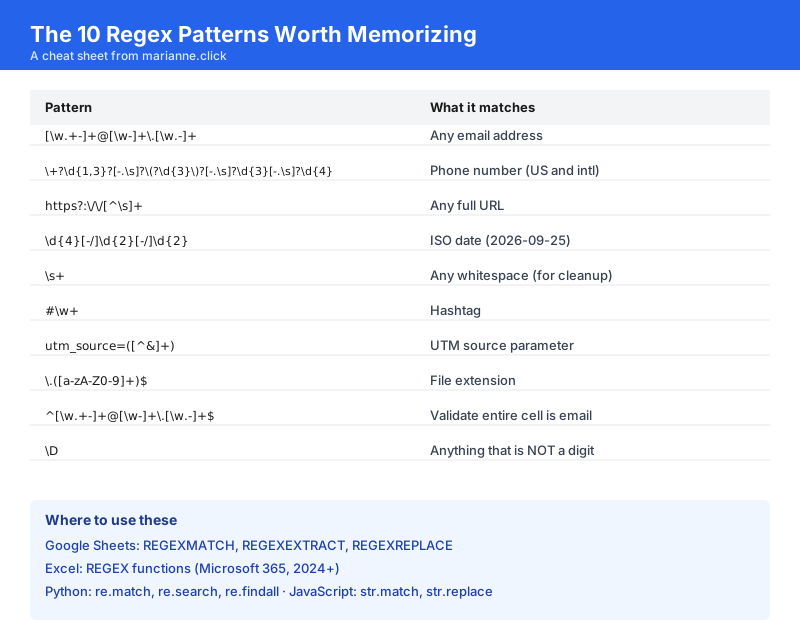
Copy the ten patterns from this post into a Google Sheet. Label each one with what it does. Save it as your regex reference.
Every time you write a new pattern that solves a real problem, add it. Within a year you have a personal library that turns 30-minute cleaning jobs into 30-second formulas.
Commentary Section
Reach out to three professionals who work with data at scale for their favorite regex pattern. Candidates: SEO consultants who use regex in Search Console filters, developer advocates at data companies, and Airtable or Notion power users.
Their patterns add variety and give you outreach hooks for post promotion.
Wrapping Up
Regex is the single skill with the highest return on investment in any spreadsheet job. Ten patterns cover most work. The cheat sheet in Chapter 10 covers the rest.
Related tutorials worth reading next: the QUERY function guide for filtering data before regex runs on it, the Python Pandas CRM cleaning guide for regex at scale, and the beginner's guide to Apps Script triggers for scheduled regex-based cleaning.
Sources: