Why QUERY Is the Most Underrated Formula in Google Sheets
Google Sheets serves over 900 million monthly active users. In the United States, 85% of startups and 61% of small businesses treat it as their primary spreadsheet tool. Two-thirds of freelancers rely on Sheets to manage client data.
Most of those users never touch the QUERY function. Which means most of them do work that a single formula could handle.
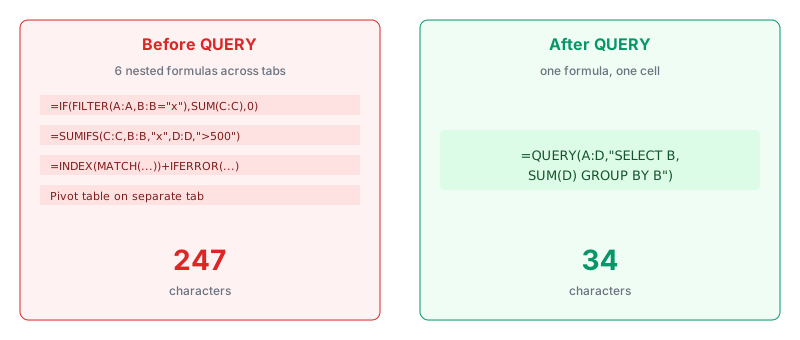
QUERY brings SQL-style logic into a spreadsheet cell. Once it clicks, you stop building 15-tab workbooks and start pulling exactly what you need from a single source of truth.
Chapter 1: The Anatomy of a QUERY Formula
The syntax has three parts.
=QUERY(data, query, headers)
data is the range you pull from.
query is a string that reads almost like plain English.
headers is an optional number telling QUERY how many header rows exist. Set it to 1 for most cases.
Here is the simplest working example.
=QUERY(A1:D100, "SELECT A, B WHERE C > 500", 1)
That reads columns A and B from rows where column C is greater than 500. If you know SQL, you already know 80% of QUERY.
Chapter 2: The Clauses You Actually Need
QUERY supports nine clauses. Four cover most real work.
| Clause | What it does | Example |
|---|---|---|
| SELECT | Picks columns | SELECT A, C, F |
| WHERE | Filters rows | WHERE B = 'Active' |
| GROUP BY | Aggregates | GROUP BY A |
| ORDER BY | Sorts | ORDER BY D DESC |
Master these four and you can rebuild almost any manual filter workflow.
Chapter 3: Marketing Example 1 — Campaign Performance Summary
You have a table of ad campaigns with columns for campaign name, channel, spend, and conversions.
To pull only Facebook campaigns that converted more than 10 times:
=QUERY(Campaigns!A1:D500, "SELECT A, C, D WHERE B = 'Facebook' AND D > 10", 1)
One formula. No filter view. No pivot table.
Chapter 4: Marketing Example 2 — Grouped Spend by Channel
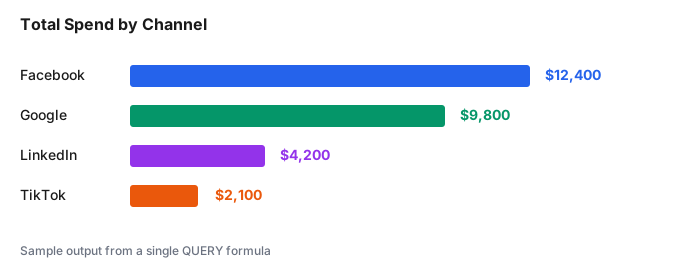
Same dataset, different question. Total spend per channel.
=QUERY(Campaigns!A1:D500, "SELECT B, SUM(C) GROUP BY B ORDER BY SUM(C) DESC", 1)
That returns a two-column output: channel and total spend, sorted highest to lowest.
Chapter 5: Marketing Example 3 — Filtering by Date Range
Date filtering is where most people give up on QUERY. The syntax needs a date keyword.
=QUERY(Data!A1:E1000, "SELECT * WHERE A >= date '2026-01-01' AND A <= date '2026-03-31'", 1)
Wrap the date in single quotes and prefix it with the word date. That is the whole trick.
Chapter 6: Marketing Example 4 — Live UTM Report
Say column B holds UTM sources. Pull a live count of sessions per source.
=QUERY(Traffic!A1:C10000, "SELECT B, COUNT(A) GROUP BY B ORDER BY COUNT(A) DESC LABEL COUNT(A) 'Sessions'", 1)
LABEL renames the aggregate column so the output reads clean instead of "count A."
Chapter 7: Marketing Examples 5 to 8 — The Rapid Fire Set
5. Top 10 landing pages by conversion rate:
=QUERY(Pages!A1:D500, "SELECT A, D ORDER BY D DESC LIMIT 10", 1)
6. Emails opened in the last 7 days:
=QUERY(Email!A1:D2000, "SELECT * WHERE C > date '2026-09-17' AND B = 'Opened'", 1)
7. Contacts missing a phone number:
=QUERY(CRM!A1:F1000, "SELECT A, B WHERE E IS NULL", 1)
8. Duplicate email addresses:
=QUERY(Contacts!A1:B5000, "SELECT B, COUNT(B) GROUP BY B HAVING COUNT(B) > 1", 1)
That last one is a duplicate detector. Point it at any contact list and it hands back only the offenders.
Chapter 8: Marketing Example 9 — Text Search with LIKE
QUERY supports partial matching through the LIKE operator with % as the wildcard.
=QUERY(Content!A1:C200, "SELECT A, B WHERE C LIKE '%SEO%'", 1)
That returns every row where column C contains the letters "SEO" anywhere in the cell.
Chapter 9: Marketing Example 10 — Cross-Sheet Data Pull
Combine QUERY with IMPORTRANGE to pull from another Sheet entirely.
=QUERY(IMPORTRANGE("SHEET_URL", "Data!A1:D500"), "SELECT Col1, Col3 WHERE Col2 = 'Priority'", 1)
Notice the column names change to Col1, Col2, Col3. That switch trips up almost everyone the first time. IMPORTRANGE strips headers, so QUERY has to reference columns by position.
Chapter 10: Marketing Examples 11 and 12 — Pivots and Percentages
11. Pivot campaigns by month and channel:
=QUERY(Data!A1:D1000, "SELECT B, SUM(D) WHERE A IS NOT NULL GROUP BY B PIVOT MONTH(A)+1", 1)
12. Percentage of total by category:
=QUERY(Data!A1:B500, "SELECT A, (SUM(B)/SUM(B) label sum(B) 'Total') GROUP BY A", 1)
These two land you in pivot-table territory without ever opening the pivot menu.
Chapter 11: The Errors You Will Hit
#VALUE! error. Usually a mismatched column type. Column has a number in the header row that QUERY thinks is data. Set the headers argument to 1.
#N/A "No column." The column letter you referenced does not exist in the data range. Widen the range or check the letter.
#REF! from IMPORTRANGE. The source Sheet has not been authorized. Click the cell, click "Allow access" in the popup, and it resolves.
Save this troubleshooting list somewhere. These three cover 90% of QUERY problems.
Chapter 12: When Not to Use QUERY
QUERY struggles when a single column mixes text and numbers. It picks a type, treats every value that does not match as null, and silently drops rows.
For those cases, run the FILTER function instead. FILTER is less powerful but more forgiving.
Two-thirds of freelancers rely on Google Sheets as their primary tool for managing data, according to 2026 Google Sheets usage research. QUERY is the single formula that turns a Sheet from a container into a live query engine.
Commentary Section
Reach out to two spreadsheet influencers on LinkedIn or Twitter for a one-line take on their favorite QUERY use case. People to consider: creators who post spreadsheet content, Google Product Experts, and freelancers who train teams on Sheets.
Their quotes give the post external credibility and turn each contributor into a warm outreach target when you promote the piece.
Wrapping Up
QUERY replaces most manual filter, sort, and pivot workflows in Google Sheets. The four clauses in Chapter 2 handle the majority of real work.
Related tutorials worth reading next: the Looker Studio calculated fields guide for turning QUERY output into charts, the beginner's guide to Apps Script triggers for automating QUERY outputs, and the regex patterns for non-programmers guide for cleaning data before it even hits your formulas.
Sources: