Why Apps Script Is the Best Free Tool You Are Not Using
Google Sheets serves 900 million monthly active users. Gmail serves 1.5 billion. Google Workspace supports over 3 billion users worldwide with 11 million paying customers.
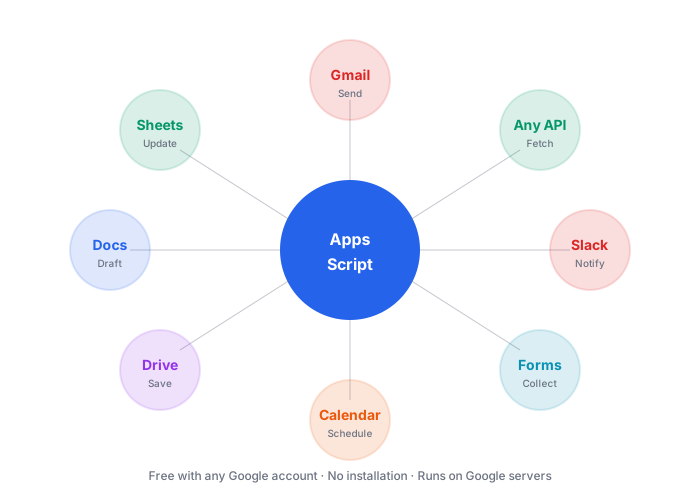
Apps Script sits inside every one of those accounts and lets you automate anything the Google ecosystem touches. It is free. It runs on Google's servers. It requires no installation, no server setup, and no credit card.
Yet most people who use Google Workspace daily have never touched it. This guide fixes that.
Chapter 1: What Apps Script Actually Is
JavaScript that runs on Google servers, with special access to your Google Workspace.
That is the whole thing.
If you know a little JavaScript, you can write Apps Script. If you know none, the syntax is close enough to plain English that beginners get productive within a weekend.
Companies using marketing automation see an average of 6+ hours saved per week on routine tasks, according to 2026 automation research. Apps Script delivers those savings without a monthly subscription because it is bundled inside the Google Workspace users already pay for.
Chapter 2: How to Open the Editor
Two ways in.
From any Google Sheet, click Extensions, then Apps Script.
From script.google.com directly.
Either opens a code editor with a blank function ready.
function myFunction() {

}
That is your starting point. Every script you write sits inside a function like this.
Chapter 3: Your First Script — Send Yourself an Email
Paste this in and hit Save.
function sendMyself() {
  GmailApp.sendEmail(
    'your.email@example.com',
    'Hello from Apps Script',
    'This email came from a script that took 30 seconds to write.'
  );
}
Click Run. Grant permissions when Google asks.
Check your inbox. The email is there.
That single script proves you have automation power. Every other tutorial in this post builds on the same three-line pattern.
Chapter 4: Reading From a Sheet
The pattern to read a value:
function readFromSheet() {
  const sheet = SpreadsheetApp.getActiveSheet();
  const value = sheet.getRange('A1').getValue();
  Logger.log(value);
}
Logger.log() writes to the Executions log panel at the bottom of the editor. Use it while learning. It replaces console.log.
To read a whole range:
const data = sheet.getRange('A1:D10').getValues();
getValues returns a two-dimensional array. data[0][0] is A1. data[1][0] is A2. data[0][1] is B1.
Chapter 5: Writing To a Sheet
The mirror pattern:
function writeToSheet() {
  const sheet = SpreadsheetApp.getActiveSheet();
  sheet.getRange('A1').setValue('Automated');
  sheet.getRange('A2').setValue(new Date());
}
Or append a whole row:
sheet.appendRow(['Column A', 'Column B', 'Column C']);
appendRow is the workhorse. Nine times out of ten, you use it to log new data at the bottom of a sheet.
Chapter 6: Triggers — The Magic That Runs Your Script
A script that only runs when you click Run is not automation. Triggers make it automation.
In the editor, click the clock icon on the left sidebar. That opens the Triggers panel.
Click Add Trigger. Pick the function to run. Pick Time-driven as the event source. Choose the schedule.
Options include every minute, every hour, every day at a specific time, every week on a specific day, or every month on a specific date.
| Trigger type | What triggers it | Common use case |
|---|---|---|
| Time-driven | A schedule you set | Weekly report email |
| onOpen | Opening a Sheet | Adding a custom menu |
| onEdit | Editing a Sheet cell | Logging when values change |
| onFormSubmit | Google Form submission | Custom form processing |
| Webhook | External POST request | Zapier or Make triggering the script |
Most reporting automation uses the time-driven trigger.
Chapter 7: A Real Weekly Report Script
This one pulls data from a Sheet, formats it, and emails it every Monday.
function weeklyReport() {
  const SHEET_ID = 'YOUR_SHEET_ID';
  const RECIPIENT = 'client@example.com';

  const sheet = SpreadsheetApp.openById(SHEET_ID).getSheetByName('Data');
  const lastRow = sheet.getLastRow();
  const data = sheet.getRange(2, 1, lastRow - 1, 4).getValues();

  let body = 'Weekly Report\n\n';
  body += 'Date | Sessions | Conversions | Revenue\n';
  body += '---\n';

  data.slice(-7).forEach(row => {
    body += `${row[0]} | ${row[1]} | ${row[2]} | $${row[3]}\n`;
  });

  const total = data.slice(-7).reduce((sum, row) => sum + row[1], 0);
  body += `\nTotal sessions this week: ${total}`;

  GmailApp.sendEmail(RECIPIENT, 'Your Weekly Report', body);
}
Set a Monday morning trigger. The client gets a report without you touching anything.
Chapter 8: Handling Errors Without Crashing
Real scripts fail. APIs time out. Sheets get renamed. Formulas break.
Wrap risky operations in a try-catch:
function safeReport() {
  try {
    weeklyReport();
  } catch (e) {
    GmailApp.sendEmail(
      'your.email@example.com',
      'Report script failed',
      `Error: ${e.message}\n\nStack: ${e.stack}`
    );
  }
}
Point the trigger at safeReport instead of weeklyReport. Now if anything breaks, you get an email with the error instead of silence.
Chapter 9: Working With Gmail Beyond Sending
Apps Script can also read Gmail. Search threads. Add labels. Reply automatically.
function labelUrgent() {
  const threads = GmailApp.search('subject:urgent -label:handled', 0, 20);
  const label = GmailApp.getUserLabelByName('urgent') ||
                GmailApp.createLabel('urgent');
  threads.forEach(thread => thread.addLabel(label));
}
That labels every unread email with "urgent" in the subject. Combine with a scheduled trigger and you have an inbox triage bot.
Chapter 10: Common Beginner Mistakes
Hardcoding IDs in every script. Store the Sheet ID and other constants at the top of the file. When something changes, you edit one place.
Reading one cell at a time in a loop. Every getValue call is slow. Read the whole range once with getValues, loop over the array in memory, then write back once with setValues.
Forgetting the daily quotas. Free Gmail accounts allow 100 emails per day via Apps Script. Workspace accounts allow 1,500. If you send more than that, batch or move to a proper mail service.
Ignoring execution time limits. Simple triggers must complete in 30 seconds. Time-driven triggers get 6 minutes on free accounts, 30 minutes on Workspace. Long jobs need to be chunked or moved to Cloud Functions.
Chapter 11: Where to Go Next
Once you have the basics down, the highest-value patterns to learn next:
Custom menus that add buttons to your Sheets. Useful for handing scripts to non-technical teammates.
Web apps that expose your script as a URL others can visit or POST to. Useful for turning a script into a mini internal tool.
External API calls with UrlFetchApp. Useful for pulling data from any REST API into a Sheet.
Each of these unlocks a category of workflow that Apps Script alone can automate for free.
Google Sheets can be connected with more than 120 different external applications. Apps Script is the glue that connects to anything with a URL, which effectively removes the connector limit for anyone willing to write a dozen lines of code.
Chapter 12: Learning Resources That Actually Help
The official Apps Script documentation is thorough but dense. Read it as a reference, not a tutorial.
The best free video course is on YouTube from Learn Google Sheets & Excel Spreadsheets. Full playlist covers most patterns.
For real project ideas, browse the Google Workspace Marketplace and read what other developers built. Reverse engineering existing add-ons is a fast way to see what is possible.
Commentary Section
Reach out to three Google Workspace developer experts and three Google Product Experts for their favorite Apps Script tip or gotcha. That is six voices, each with a one-line contribution that adds real depth.
Their tips give the post a level of expertise no single author reaches on their own. Every quoted contributor becomes an outreach target when you promote the piece.
Wrapping Up
Apps Script turns Google Workspace into an automation platform. The 15 lines of code in Chapter 7 replace a job that used to take an hour a week. Once you learn the pattern, it scales across every recurring report, notification, and data-syncing task in your workflow.
Related tutorials worth reading next: the Gmail-to-Sheets database guide for a real production example, the weekly client reporting dashboard guide for combining Apps Script with Looker Studio, and the Debugging Common Apps Script Errors guide for the mistakes that eat weekends.
Sources: